


Defender for Cloud Apps will retire its file policies on January 6, 2027, in favor of Purview
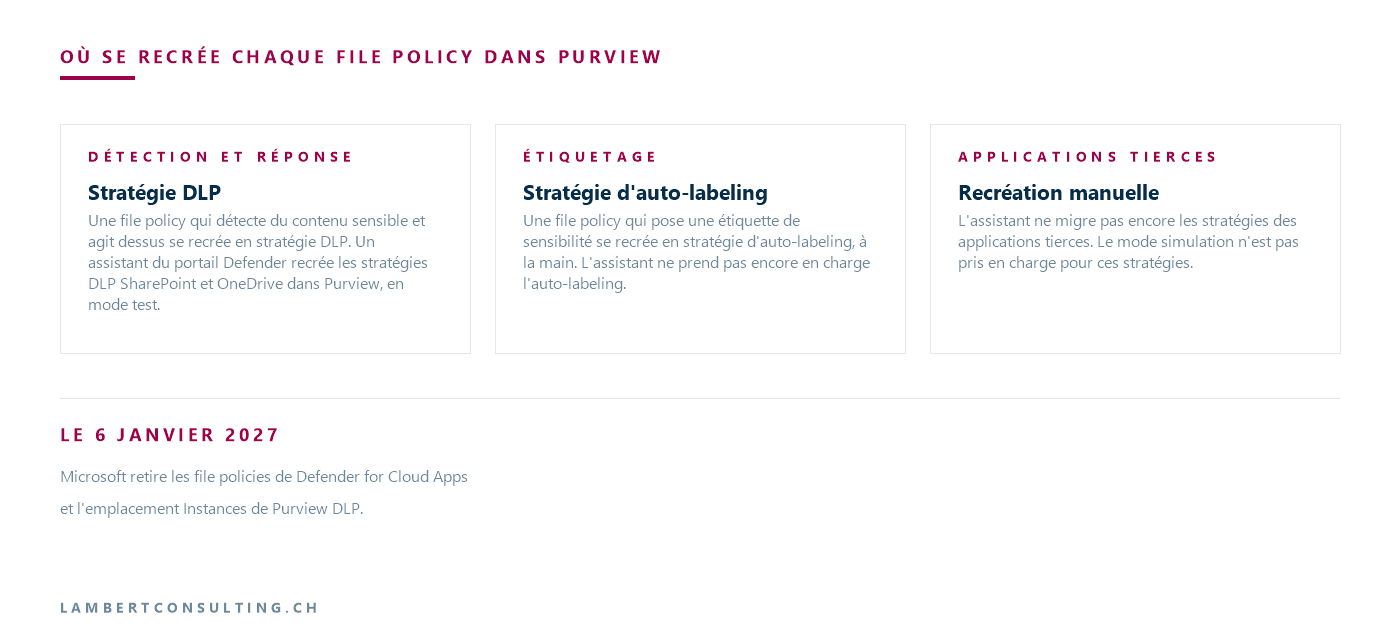
On January 6, 2027, Microsoft will retire the file policies for Defender for Cloud Apps and the Purview Instances location DLP. A wizard in the Defender portal recreates the policies DLP SharePoint and OneDrive in Purview, in test mode. Automatic tagging and third-party applications must be recreated manually.
Microsoft is removing file policies from Defender for Cloud Apps on January 6, 2027. File-based data protection is transitioning to Microsoft Purview : a file policy that detects sensitive content and takes action on it is recreated as an DLP, and a file policy that applies a sensitivity label will be converted to an auto-labeling policy. On the same day, Microsoft will also retire the “Instances” location in Purview DLP, through which a strategy DLP targeted third-party applications connected to Defender for Cloud Apps, as well as the experience for creating these policies.
Defender for Cloud Apps remains in place: Microsoft clarifies that the product continues to provide application discovery SaaS, posture management, and threat detection. The discontinuation is noted in the June 2026 release notes, and a guide migration is available in the Microsoft Defender portal.
| What's Changing | Date or Status | What Microsoft Requests or States |
|---|---|---|
| Defender for Cloud Apps | Withdrawal on January 6, 2027 | Recreate them as strategies DLP or auto-labeling strategies in Purview prior to that date |
| Location of Purview Instances DLP and creation of corresponding policies | Withdrawal on January 6, 2027 | Recreate the policies with slots dedicated to connected third-party applications |
| DLP Purview for Box, Dropbox, Google Workspace , and Salesforce | Preview, phased rollout | A Defender for Cloud Apps is required |
| Assistant to migration Defender Portal | Available, limited to strategies DLP SharePoint and OneDrive | Auto-labeling and third-party apps are not yet supported |
| Exploring applications SaaS, posture management, threat detection | Remain in Defender for Cloud Apps | Microsoft states that the product continues to provide them with |
Retrieved on September 29, 2026 from Microsoft documentation.
Compile a list of file policies and categorize them by use
The Microsoft procedure begins with an inventory, under Cloud Apps > Policies > Policy Management, and filtering by Type to “File Policy.” It requires you to note the targeted applications, the content inspection method, the types of sensitive information or detected labels, the context filters, and the governance actions.
Each strategy is then classified based on its role: detection and response are routed to Purview DLP, while content-based labeling goes to auto-labeling. A policy pipeline that labels, notifies, and alerts is recreated—in Microsoft’s example—as two Purview strategies: an auto-labeling strategy and a strategy DLP with the same conditions.
The page migration requires the Compliance Administrator or Compliance Data Administrator role group in Purview, the Cloud App Security Administrator in Defender for Cloud Apps to review file policies, and an Microsoft 365 E5, Microsoft 365 E5 Compliance license, or an equivalent standalone Purview DLP .
The assistant migration processes the strategies DLP for SharePoint and OneDrive
The assistant only supports file policies DLP for SharePoint and OneDrive : Auto-labeling and third-party application policies—including those for Google Workspace, Box, Dropbox, and Salesforce—are not yet supported. The tool is available only to commercial customers in production environments and is not available for government or sovereign environments. It requires Security Administrator permissions on the Defender side and Compliance Administrator permissions on the Purview side.
You can open it by clicking the "Migrate" button on the withdrawal banner, under Cloud Apps > Policies > Policy Management, on the All Policies tab. It categorizes the policies into Can Migrate, Partial migration , and Cannot migrate, shows what it will create with a Verdict and warnings about fields that need to be updated manually, and then displays the result line by line, showing “Created in Purview” if successful. Microsoft advises against closing the window during the migration, as this may result in incomplete or misconfigured policies.
The strategies created are named [Migrated] <nom d'origine> (1P DLP). A source strategy that aims to SharePoint and OneDrive provides two—one per location. They are created in “Test with notifications” mode and do not apply any actions until the applied mode has been activated. The migration does not delete the original file policies, and a policy classified as “Cannot migrate” must be recreated manually, unless you wait for the extension announced under “Coming soon.”
Governance actions that change in nature in Purview
Excerpt from the correspondence published by Microsoft, limited to actions for which there is only a partial equivalent or no equivalent at all:
| Defender for Cloud Apps | Documented equivalent in Purview | Parity Level and Note from Microsoft |
|---|---|---|
| User Quarantine | File quarantine for SharePoint and OneDrive | Partial: The file is sent to a quarantine site controlled by the administrator, not to a user quarantine folder |
| Remove a specific collaborator | Restrict access: Block access for specific external domains or users (Preview) | Partial: blocks access without deleting the existing sharing relationship |
| Move to Trash or Delete File | No direct equivalent | Restrict access DLP and Power Automate (removal upon notification) |
| Shared link expires | No direct equivalent | Sharing Strategies SharePoint and Conditional Access Microsoft Entra |
| Transfer file ownership | No direct equivalent | Manual process or " Power Automate " (specific to Google Workspace) |
The same page lists notifications, alerts, administrator quarantine, and tagging or untagging as equivalent actions. It also lists three sharing actions as equivalents, which it maps to "Restrict access" actions: removing public access and setting a resource to private become "Block everyone except owner," and removing external users becomes "Block people outside org."
The key difference lies in the sharing settings that are already in place. Purview’s “Restrict access” actions block everyone—whether external users or specific external domains and users—without changing the existing sharing settings; Microsoft directs users to Power Automate to remove the link. For removing a direct link, the documentation provides two solutions: the page migration corresponds to a “Restrict access” action: “Remove sharing link,” while the policy reference DLP, accessed on September 29, 2026, does not list among the options for SharePoint and OneDrive. Quarantine, on the other hand, removes all permissions and sharing links from the file before moving it.
Conditions with no exact match
For SharePoint and OneDrive, the “Parent folder” filter has no folder-level equivalent: the policy is limited to a per-site scope. For third-party applications, however, Microsoft lists parent folders, the last modified date, and the creation date among the available attributes—except for the creation date in Dropbox. The “Collaborators” condition applied to the entire organization is replaced by “Collaborators (domain).” File ID is not supported as a condition, and Microsoft states that it cannot be migrated.
Content inspection is handled more directly: a policy based on the Data Classification Service uses the same detection engine as Purview DLP, and a custom regular expression must first be defined as a custom sensitive information type.
Files already stored: Quarantine applies only to files created or modified after activation
File policies detect and correct violations involving both data at rest and newly created content. In Purview, quarantine does not behave this way, and auto-labeling has its own limitations.
About 40 files DLP for SharePoint and OneDrive, which is still in preview, applies only to files created or modified after the policy containing this action was enabled. Files that existed before this enablement are not evaluated for quarantine. Microsoft notes that this behavior is specific to quarantine: other actions DLP, such as blocking, apply to all files within the scope, regardless of their creation date. However, a file scanned by on-demand classification may trigger quarantine if the result matches a rule for the first time. Finally, restoring a quarantined file is a manual process; the original sharing permissions are not restored, and only the latest version of the file is returned.
Self-labeling policies can label files at rest that were created before or after the policy was created. However, a sensitive information type applies only to content created or modified after the type itself was created or modified; Microsoft specifies that this restriction applies to both custom types and new built-in types. For older files that have remained unchanged, Microsoft recommends on-demand classification.
Box, Dropbox, Google Workspace , and Salesforce: a manual recreation, without simulation mode
The wizard does not yet migrate policies for third-party applications. Therefore, two types of policies must be recreated manually: file policies that apply to these applications, and Purview policies DLP in the Instances location.
The new dedicated locations are in preview. They support Box, Dropbox, Google Workspace , and Salesforce, which are being rolled out in phases—not necessarily all at once in every tenant. The Instances location page also lists Cisco and Webex among the applications that can be connected.
These strategies have their own rules for construction:
- Each app must be connected to Defender for Cloud Apps via an app connector;
- The strategy is created using the "Custom Policy" template; the predefined "Financial," "Medical and Health," and "Privacy" templates are excluded;
- A single strategy can include multiple third-party applications, but not with SharePoint, OneDrive, Exchange, Fabric, or Devices;
- Rules are rules DLP advanced, and conditions such as available actions vary depending on the application;
- Policy tips and user overrides are not supported, nor are administrative units;
- Encrypted files and PDF files stored in these applications are not currently supported for classification.
When switching modes, one limitation is particularly important: simulation mode is not supported for these policies. In the "Policy Mode" step, your only options are to enable the policy immediately or leave it disabled. However, a policy can target all instances of an application, or include and exclude specific instances. Activity Explorer and alerts DLP cover these applications, but Content Explorer does not.
The recommended order: create in Purview, validate, deactivate without deleting, then delete
Microsoft states that Defender for Cloud Apps and Purview cannot coexist, because equivalent policies active in both products create conflicts when the policies are applied. The recommendation is to disable Defender for Cloud Apps only after you have validated and enabled the Purview policies.
New policies initially run in simulation mode—except for third-party applications that do not support this feature—and their mappings are comparable to those of file policies. Implementation then expands from a pilot group to the entire organization. Finally, the verification process compares Purview policies to the inventory, including sensitive information types and labels.
The removal of file policies occurs in four steps:
- export the configuration of each queue policy, or take screenshots of it, and save it;
- In the Defender portal, set each migrated policy to the "Disabled" status without deleting it;
- ensure that Purview policies provide equivalent protection;
- Once this validation has been completed with the file policies disabled, delete each one.
The file policy documentation includes an important rule to keep in mind during the monitoring phase: if no file policies exist, or if they remain disabled for seven consecutive days, file monitoring is automatically disabled.
Our Reading
We would not consider the migration as complete when the wizard displays “Created in Purview”: auto-labeling, third-party applications, policies classified as “Cannot migrate,” and actions without equivalents still need to be addressed. We would therefore perform a complete inventory before its first run.
The discrepancy that seems most significant to us concerns files already stored, and Microsoft’s table does not indicate this as a lack of an equivalent feature. A file policy that quarantined content at rest does not have the same effect in Purview, where quarantine applies only to files created or modified after activation. For auto-labeling, the limitation depends on the type of sensitive information—whether it is custom or recent. We would schedule on-demand classification as soon as the original strategy’s objective shifted to older files.
For third-party applications—without simulation or coexistence with the original strategy—validation takes place in production. We would start with a single instance, using notification and alert actions if the application supports them, before enabling more restrictive actions.
Finally, a file policy that previously removed an existing share—whether for specific collaborators, public access, or a link—now functions differently in Purview: “Restrict access” actions block access without removing the share, and “Quarantine” removes all permissions and moves the file, which goes beyond simply removing a share. We’d handle this case separately, using a “ Power Automate ” workflow or the sharing settings SharePoint as designated by Microsoft. And since Purview DLP does not go below the site level in SharePoint, the inventory of SharePoint becomes the basis for the scope of policies, as it already is when it comes to limiting what Copilot sees in SharePoint using Restricted Content Discovery.
What to Check
- A list of file policies, including for each one the targeted applications, the inspection method, the context filters, and the governance actions.
- File policies that apply a label: they are recreated through auto-labeling or manually, and are accompanied by a strategy DLP if they also send notifications or alerts.
- Strategies that use "Parent folder," "File ID," "Collaborators" across the entire organization, or a custom regular expression.
- The actions "Trash or delete file," "Expire shared link," "Transfer file ownership," "Remove specific collaborator," and "User quarantine," which have only a partial equivalent or no direct equivalent.
- Strategies that remove sharing—such as "Remove public access," "Remove external users, “Make private,” or “Remove direct shared link”: “Restrict access” actions block access without removing the existing share, and the “Remove sharing link” action—which the page migration associates with removing a link is not listed in the policy reference DLP.
- Strategies designed to act on files that were already stored, in order to enable on-demand classification.
- The Purview quarantine location, configured prior to any strategy that uses the "File quarantine" action.
- Purview Strategies DLP for the Instances location, the application connectors that the new locations depend on, and the availability of each third-party application in the tenant.
- File monitoring in Defender for Cloud Apps, which automatically turns off if no file policies exist or if they remain disabled for seven consecutive days.
Microsoft Sources
- Migrate file policies to Microsoft Purview
- What's New in " Microsoft Defender " for Cloud Apps
- File policies in Microsoft Defender for Cloud Apps
- Use data loss prevention policies for non-Microsoft cloud apps
- Use Microsoft Purview data loss prevention policies for non-Microsoft connected apps (preview)
- Learn about DLP file quarantine for SharePoint and OneDrive
- Data Loss Prevention policy reference
- Automatically apply a " sensitivity label " to content
What an article Can't Know
An article describes what applies to everyone. What varies from one organization to another is the inventory: which applications, which accounts, and which pieces of equipment are actually involved in your organization. The inventory determines the scope of the effort, and it cannot be summarized on a single page.
You'll be speaking directly with the engineers who will be doing the work, not with a middleman. We'll respond within 24 business hours.
Check what is still true
Announced dates are sometimes postponed, products are renamed, and conditions change. The blog tracks these topics over time: when a rule changes, a new post announces it.
Search for a topic in the blogIn the same issue
Three articles on the same topic. The blog has 152 articles, all of which are freely available.