


Limit what Copilot sees in SharePoint with Restricted Content Discovery
Microsoft 365 Copilot responds with what the user already sees: permissions SharePoint that are too broad make forgotten documents visible. Restricted Content Discovery removes them from discovery while rights are being reorganized.
Microsoft 365 Copilot generates responses based on content the user already has access to. In a tenant where permissions SharePoint have expanded over the years, this exposes documents that were effectively untraceable because no one had searched for them. These documents become visible because their permissions are too broad; Copilot simply enforces existing permissions.
Restricted Content Discovery addresses this situation by removing a site SharePoint from discovery experiences while rights are being resolved.
What the feature changes, and what it leaves unchanged
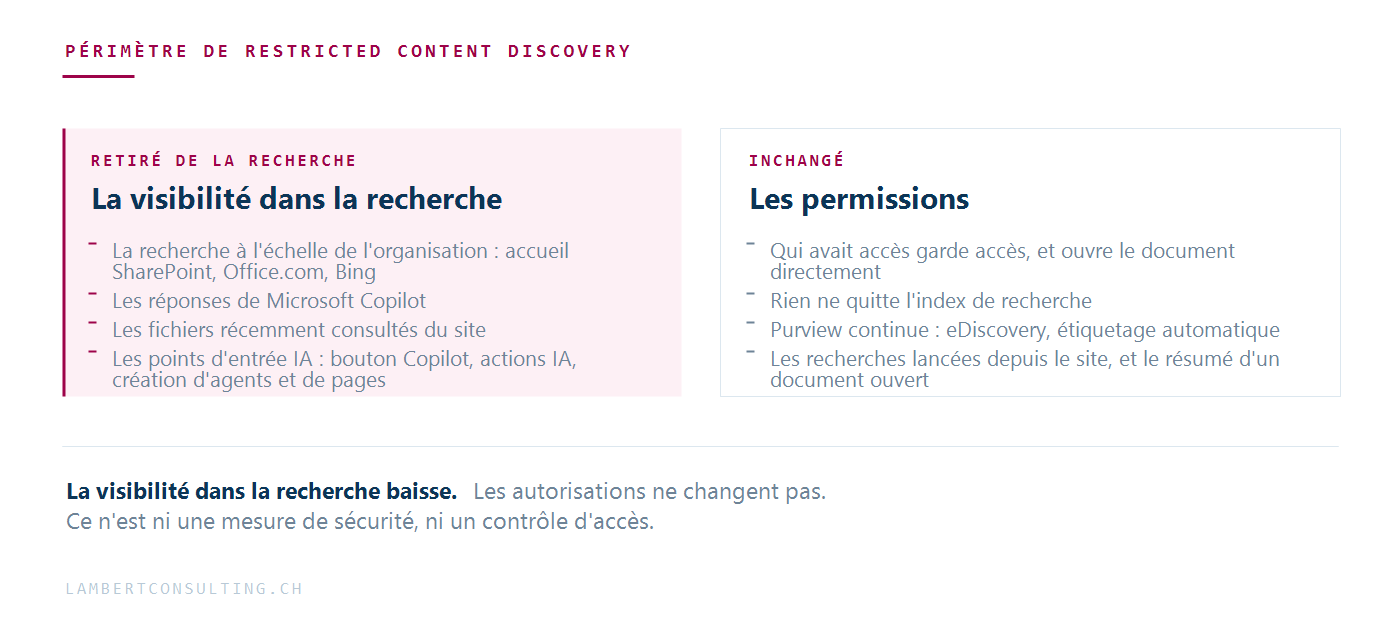
Restricted Content Discovery affects content discovery —how content appears in search results and Copilot responses—without changing access permissions.
What she does:
- The site's content no longer appears in organization-wide search results—Home SharePoint, Office.com, Bing — nor in Copilot’s responses;
- recently viewed files on the site also stop appearing;
- The AI entry points are being removed from the site: the Copilot button, AI action menus, agent creation, and page creation using AI.
What it doesn't do:
- It does not change any permissions; anyone who had access retains access and can open the document directly;
- It does not remove anything from the search index, so Purview features such as theeDiscovery , and automatic tagging continue to function normally;
- It does not affect searches initiated from the site itself, nor does it affect tasks that involve content that is already open—it is still possible to summarize a document that the user has in front of them;
- It does not apply to OneDrive, but only to websites SharePoint.
The feature therefore reduces the visibility of content without serving as a security measure or access control. Microsoft describes it as a temporary governance control that gives the organization time to review access rights while Copilot’s rollout continues.
Prerequisites and Licenses
Two conditions must be met before you can enable the feature.
- SharePoint Advanced Management prerequisites, including the “ PowerShell ” module, “SharePoint Online,” and role assignments.
- Microsoft Copilot license within the organization. Microsoft reserves this feature for Copilot deployment and governance scenarios, and access to it is contingent on having a Copilot license.
An organization without a Copilot license cannot use Restricted Content Discovery to exclude sites from search results organization-wide.
Activate, Verify, Remove
From the Administration Center SharePoint : Sites > Active Sites, select the site, go to the Settings tab, then enable “Restrict content from Microsoft Copilot ” (or“Restrict content from Microsoft Copilot ” if your admin center is in English), and save.
In PowerShell, activation is done with a single command:
Set-SPOSite -Identity <url-du-site> -RestrictContentOrgWideSearch $trueWithdrawal uses the same command with $false. To check a site's status:
Get-SPOSite -Identity <url-du-site> | Select RestrictContentOrgWideSearchTo get a complete overview, there are three options: generate the report, track its status, and download it.
Start-SPORestrictedContentDiscoverabilityReport Get-SPORestrictedContentDiscoverabilityReport Get-SPORestrictedContentDiscoverabilityReport -Action Download -ReportId <ReportGUID>By default, only administrators SharePoint control this setting. It is possible to delegate this to site administrators:
Set-SPOTenant -DelegateRestrictedContentDiscoverabilityManagement $trueWhen delegation is enabled, a site administrator who changes the setting must provide a justification. These justifications, like enablements and disablings, are recorded in the Purview audit logs.
Propagation delay
Restricted Content Discovery is a site property. The indexing systems Microsoft 365 propagate it, and the setting takes effect only after this propagation is complete. The time required varies depending on the number of items on the site and the number of sites being modified simultaneously.
For a site with more than 500,000 elements, it may take more than a week for the changes to be fully reflected in search results and in Copilot. If a site is still visible the day after activation, this is expected behavior, not a configuration error.
Make sure to factor this timeframe into your schedule: if you plan to make Copilot available to a specific group on a given date, restrict access to the relevant sites several weeks in advance.
Consequences of an overly broad scope
Microsoft notes that extensive use of the feature reduces the amount of content available for search and for Copilot, which degrades the relevance and completeness of the responses.
In practice, an organization that imposes significant restrictions during a lengthy permissions audit deprives Copilot of some of its data. Responses become incomplete, users stop using the assistant, and licensing fees continue to accrue during that time.
So restrict access to a limited number of sites: those with a high risk of oversharing, those whose permissions are currently being reviewed, and those affected by a phased Copilot rollout. As soon as you enable the restriction, set a date for when you’ll lift it. For example, you can restrict the Finance and Human Resources sites while their owners review access permissions, then make them visible again in search results.
There are three tools that can be used to identify these sites: the SharePoint Administration Agent, content management assessment, and data access governance reports.
The Role of Functionality in Access Governance
Restricted Content Discovery is a transitional measure. It allows for the temporary extension of a tenant’s operation whose permissions have not yet been reviewed, but it does not replace that review: determining who has access to what and for what reason remains a task that must be carried out at the organizational level.
This project follows the same evaluation approach as conditional access: the challenge lies in determining to whom the rule applies; our guide on conditional access explains this point in detail.
Microsoft Sources
- Restrict Discovery of Sites and Content SharePoint — Microsoft Learn
- SharePoint Advanced Management Prerequisites — Microsoft Learn
- Prepare for " Microsoft Copilot " with " SharePoint " Advanced Management — Microsoft Learn
What an article Can't Know
An article describes what applies to everyone. What varies from one organization to another is the inventory: which applications, which accounts, and which pieces of equipment are actually involved in your organization. The inventory determines the scope of the effort, and it cannot be summarized on a single page.
You'll be speaking directly with the engineers who will be doing the work, not with a middleman. We'll respond within 24 business hours.
Check what is still true
Announced dates are sometimes postponed, products are renamed, and conditions change. The blog tracks these topics over time: when a rule changes, a new post announces it.
Search for a topic in the blogIn the same issue
Three articles on the same topic. The blog has 149 articles, all of which are freely accessible.