


Copilot is SharePoint Now Generally Available: Copilot Credits and Settings PowerShell
The rollout of Copilot SharePoint general availability begins on September 30, 2026. Current capabilities remain included in the Microsoft 365 , “advanced work” consumes Copilot Credits, and the “ PowerShell ” settings from the preview will remain in effect until November 1, 2026.
Microsoft has set September 30, 2026, as the start date for the rollout of Copilot SharePoint general availability. The documentation specifies that features may appear in a tenant after this date, as the rollout progresses. Entry 501451 in the roadmap Microsoft 365 was still listed as “In development” at the time of our review, with general availability announced for September 2026.
Two things are changing for administrators. The work that Microsoft calls “advanced work”—that is, the new agent-based capabilities and work on a larger scale—consumes Copilot Credits. And the settings for Set-SPOTenant that opened or closed Copilot in SharePoint during the preview, including KnowledgeAgentScope, are currently being removed.
| Element | What Microsoft Documents |
|---|---|
| Start of General Availability Rollout | September 30, 2026, with a phased rollout |
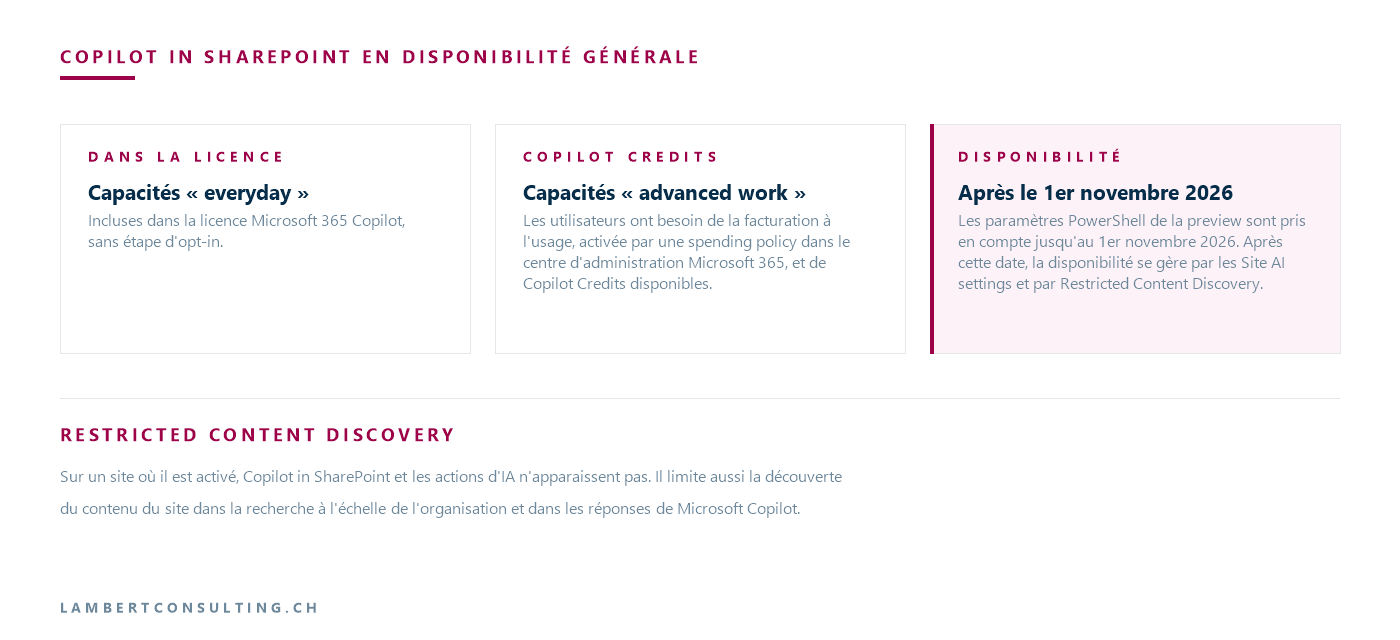
| "Everyday" Skills | Included in the license Microsoft 365 Copilot, with no opt-in required |
| "Advanced Work" Skills | Pay-as-you-go billing, spending policy, and Copilot Credits available |
| Real-time metadata autofill across an entire site | Pay-as-you-go billing is also enabled for the site SharePoint |
| PowerShell 's preview settings | Valid through November 1, 2026 |
| Availability Management Next | AI Settings and Restricted Content Discovery |
| Weekly limits for the preview | Removed from general availability |
Retrieved on September 29, 2026 from Microsoft documentation.
The content of a SharePoint Server is handled by a different mechanism, described in our article on the Copilot connector for SharePoint Server .
What Remains Included in the License Microsoft 365 Copilot
To use Copilot in SharePoint, a user must have an Microsoft 365 active Copilot license. The “everyday” features are included in this license at no additional cost, and Microsoft notes that no opt-in is required.
The table on the Microsoft page in this section covers asking questions, finding content, and staying up to date; creating HTML, Word, Excel, or PowerPoint files; creating and editing pages, libraries, or lists; creating simple rules, approvals, and deterministic workflows; renaming and sharing files one by one; creating and managing skills; and using metadata autofill.
What Uses Up Copilot Credits: “Advanced Work”
The other column in the table describes automation across large sets of content: working with large or unlimited sets of content, including large-scale summarization and document review; creating entire sites and solutions; creating and modifying files, pages, libraries, and lists on a large scale; complex, multi-step AI workflows, such as skills within scheduled automations; real-time metadata autofill; the generation of new images in document libraries and pages, and the modification of existing images; and performance analyses of sites, pages, news articles, and documents.
For this task, users need pay-as-you-go billing, enabled by a spending policy in the admin center Microsoft 365, and available Copilot Credits. Real-time metadata autofill across an entire site also requires pay-as-you-go billing to be enabled for the SharePoint in question.
The number of Copilot Credits used varies depending on the type and complexity of the task, as well as the nature and volume of the content being processed.
Enable Advanced Work in SharePoint in a spending policy
According to Microsoft, most organizations require an administrator to take action before anyone can use the advanced features. The procedure described on the Copilot page in SharePoint :
- In the Admin Center Microsoft 365, open Copilot > Cost Management.
- Select " Add spending policy " and name the policy.
- Under " Access Scope," apply it to all users or to specific security groups.
- Under " Agents and Services," select " Advanced Work-in- SharePoint."
- Configure Limits and Alerts, select a billing method, then review and add the policy.
The Copilot Credits management page specifies who can do what. The Global administrator and Billing administrator roles can add and change billing methods. The AI administrator and License administrator roles can modify a spending policy—including its limits, alerts, and billing method—but cannot create one. Specific users are currently targeted only through security groups. When a user reaches the limit of a monthly budget policy, they lose access to the affected agents and services until the credits are reset on the first of the month.
An existing spending policy may cover SharePoint without modification
A spending policy that has already been created—for Cowork, for example—can automatically include new services as soon as they become available. The Copilot Credits management page refers to this setting as “Auto-apply new services” and indicates that it is enabled by default. The Copilot page SharePoint asks you to review existing policies to verify this setting, since a policy that has kept it active may cover work already in progress SharePoint without anyone having added it.
Who Needs Copilot Credits, According to Microsoft
Microsoft states that it is not necessary to make these features available to all users of SharePoint. Priority should be given to content managers—such as knowledge managers or records managers—and site managers—such as SharePoint or intranet managers, who create or update sites on a large scale. For content creators, Microsoft recommends assigning credits as needed, because routine content creation is included, but high-volume, repeated production may require advanced capabilities. Other users of SharePoint probably do not need credits, according to Microsoft.
What a user sees, with or without Copilot Credits
When a prompt requires an advanced capability or exceeds the threshold for large-scale processing, Copilot first asks for the user’s consent—provided the user has credits—and then the interface indicates that credits are being used for the session. The command /cost displays the credits used by a task, the remaining monthly limit, and the date it resets. When 20% of the monthly limit remains, Copilot notifies the user that pay-as-you-go features will be suspended until the following month once the limit is reached, and the user can request additional credits directly from this message.
If it lacks credits, Copilot explains what it cannot do when a prompt requires an advanced capability. If the task exceeds the threshold for large-scale processing, it completes what it can and then asks you to start a new chat session.
KnowledgeAgentScope and the " PowerShell " settings in the preview: supported through November 1, 2026
During the preview, Copilot's availability SharePoint was controlled by three settings for Set-SPOTenant : KnowledgeAgentScope, KnowledgeAgentSelectedSitesList and KnowledgeAgentSelectedSitesListOperation. Their names retain the old designation “Knowledge Agent” for compatibility reasons. Microsoft is removing these controls with the general availability release: existing settings will remain in effect until November 1, 2026, and after that date, availability will be managed through Site AI settings and Restricted Content Discovery.
As of this date, the Copilot page SharePoint lists the following rules:
KnowledgeAgentSelectedSitesListreceives a list of website addresses, limited to 100 entries, and is used only whenKnowledgeAgentScopeis worthIncludeSelectedSitesorExcludeSelectedSites. By default, the list you provide replaces the existing list.KnowledgeAgentSelectedSitesListOperationacceptsOverwrite(default value),AppendandRemove. WithoutKnowledgeAgentSelectedSitesList, it has no effect.- In a multi-geo tenant, the script runs in each geo.
- You need the SharePoint Online Management Shell version 16.0.26615.12013 or later.
The current value corresponds to Get-SPOTenant | Select-Object KnowledgeAgentScope, KnowledgeAgentSelectedSitesList.
The values of KnowledgeAgentScope, according to two Microsoft pages
The documentation provides two lists for this setting. The Copilot page, SharePoint, updated on September 25, 2026, lists four: AllSites (available on all websites), IncludeSelectedSites (available only at the locations listed), ExcludeSelectedSites (available on all sites except those on the list) and NoSites (not available on any site; default value). The reference page for Set-SPOTenant, as of September 29, 2026, lists only three, AllSites, ExcludeSelectedSites and NoSites, and describes the list of sites there as an exclusion list. Both pages provide NoSites as the default value and link these settings to the Copilot license.
After November 1, 2026: AI Settings and Restricted Content Discovery
The " Site AI Settings" panel, under Settings > Site AI, provides site owners with three options: choose which agent opens when the agent icon in the global header is clicked (Copilot or SharePoint or a custom agent; hide the Copilot button on site pages, for site visitors only; and enable advanced document processing for the site.
Restricted Content Discovery remains enabled: on a site where it is enabled, Copilot SharePoint and AI actions do not appear, regardless of other availability settings. It also limits the discovery of site content in organization-wide search and in Microsoft Copilot responses, without changing permissions. Microsoft describes it as a temporary governance control that requires a Microsoft Copilot license. It is enabled per site from the admin center SharePoint or with Set-SPOSite -Identity <adresse-du-site> -RestrictContentOrgWideSearch $true. For a site with more than 500,000 elements, the crawl may take more than a week. We’ve explained this process in detail in our article on Restricted Content Discovery and Copilot.
Languages, template, usage limitations, and unsupported environments
Copilot SharePoint supports only languages that appear in both the language list on SharePoint Online and the Microsoft Copilot language lists. It currently runs on an OpenAI reasoning model, selected and managed by Microsoft, which may change over time; no model configuration is required.
Weekly preview limits are removed upon general availability. In rare cases, daily service protection limits may still apply to users with a Copilot license, and Copilot features in SharePoint will remain unavailable until they are reset.
Microsoft 365 Government (GCC, GCC High, DoD), air-gapped environments ofOffice 365 and Microsoft 365 operated by 21Vianet do not currently support Copilot in SharePoint.
Our Reading
We would consider November 1, 2026, to be the key deadline, rather than September 30, 2026. A supporter who remained on NoSites, or who opened Copilot on SharePoint site by site with IncludeSelectedSites, relies on a setting that the Microsoft page merely states is supported only through that date, before referring users to Site AI settings and Restricted Content Discovery. Therefore, we would not count on the " PowerShell " value being supported beyond November 1, 2026.
The two remaining controls do not exactly replicate an exclusion list. Hiding the Copilot button in the Site AI settings applies only to site visitors, and it is the site owner who decides this. Restricted Content Discovery hides Copilot in SharePoint, but also limits the site’s discoverability in organization-wide search and in Microsoft Copilot responses. For a site excluded during the preview because its permissions hadn’t been reviewed, this makes sense. For a site excluded for another reason, the effect would be broader than intended. We would therefore go through the list of excluded sites one by one, starting with the largest ones, due to the propagation delay. And if sites were shut down because their permissions are too broad, the underlying issue remains that access permissions need to be reviewed before Copilot’ Microsoft 365 .
As for costs, we would review the existing spending policies before even discussing SharePoint, because a strategy open to all users with “Auto-apply new services” enabled may include work already underway in SharePoint. We would prefer a dedicated strategy, restricted by security group to content and site administrators, with a per-user limit and alerts, and then we would expand access after reviewing initial usage patterns.
What to Check
- The value of
KnowledgeAgentScopeand the content ofKnowledgeAgentSelectedSitesListin each geo within the tenant, recorded withGet-SPOTenant. - For each site that is excluded or not included during the preview, the mechanism selected after November 1, 2026, will be either “Site AI settings” or “Restricted Content Discovery,” noting that the latter also affects organization-wide search and responses from Microsoft Copilot.
- The time it takes for Restricted Content Discovery to propagate across sites with more than 500,000 items, which can exceed one week.
- The existing spending policies in Copilot > Cost Management, and the " Auto-apply new services " setting for each one.
- The scope by security groups, user limits, and alerts for the policy covering Advanced Work- SharePoint.
- Administrative roles: Global administrator or Billing administrator to create a policy, AI administrator or License administrator to modify it.
- Sites where real-time metadata autofill must be enabled site-wide, and for which pay-as-you-go billing must also be enabled.
- The version of the SharePoint Online Management Shell on administration computers: 16.0.26615.12013 or later.
Microsoft Sources
What an article Can't Know
An article describes what applies to everyone. What varies from one organization to another is the inventory: which applications, which accounts, and which pieces of equipment are actually involved in your organization. The inventory determines the scope of the effort, and it cannot be summarized on a single page.
You'll be speaking directly with the engineers who will be doing the work, not with a middleman. We'll respond within 24 business hours.
Check what is still true
Announced dates are sometimes postponed, products are renamed, and conditions change. The blog tracks these topics over time: when a rule changes, a new post announces it.
Search for a topic in the blogIn the same issue
Three articles on the same topic. The blog has 145 articles, all of which are freely accessible.